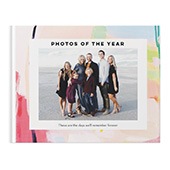


Turning your photos into a photo book is one of the most meaningful ways to preserve your memories. Whether it’s a family vacation, a wedding, a baby’s first year, or everyday moments, a photo book lets you revisit and share those stories anytime.
If you’re wondering how to make a photo book, this guide walks through the full process—from gathering your photos to ordering your finished album—while also helping you explore different styles, formats, and ideas along the way.

In This Guide
- How to prepare your photos
- How to choose a photo book template
- How to pick size, cover, and binding
- How to create and customize your book
- Additional photo book ideas and resources
Step 1: Gather and Prepare Your Photos
Before you start building your photo book, take a little time to gather the photos you want to include. This makes the entire creation process smoother and helps you stay focused once you’re inside the editor.
You can upload photos directly from your device, or import them from supported services like Google Photos, Amazon Photos, and Facebook. If your photos are spread across different places, it helps to pull them into one spot ahead of time.
As you prepare your photos, think about:
- The story or time period you want to capture
- How many photos you want to include
- Any images you want to feature more prominently
Starting with a curated set of photos makes your book feel more intentional and easier to design.
Step 2: Choose Your Photo Book Template
Photo book templates give you a starting point for your design, with coordinated layouts, fonts, and page styles based on different themes and occasions.
You’ll find templates for a wide range of projects, including:
- Travel Photo Books
- Family Photo Books
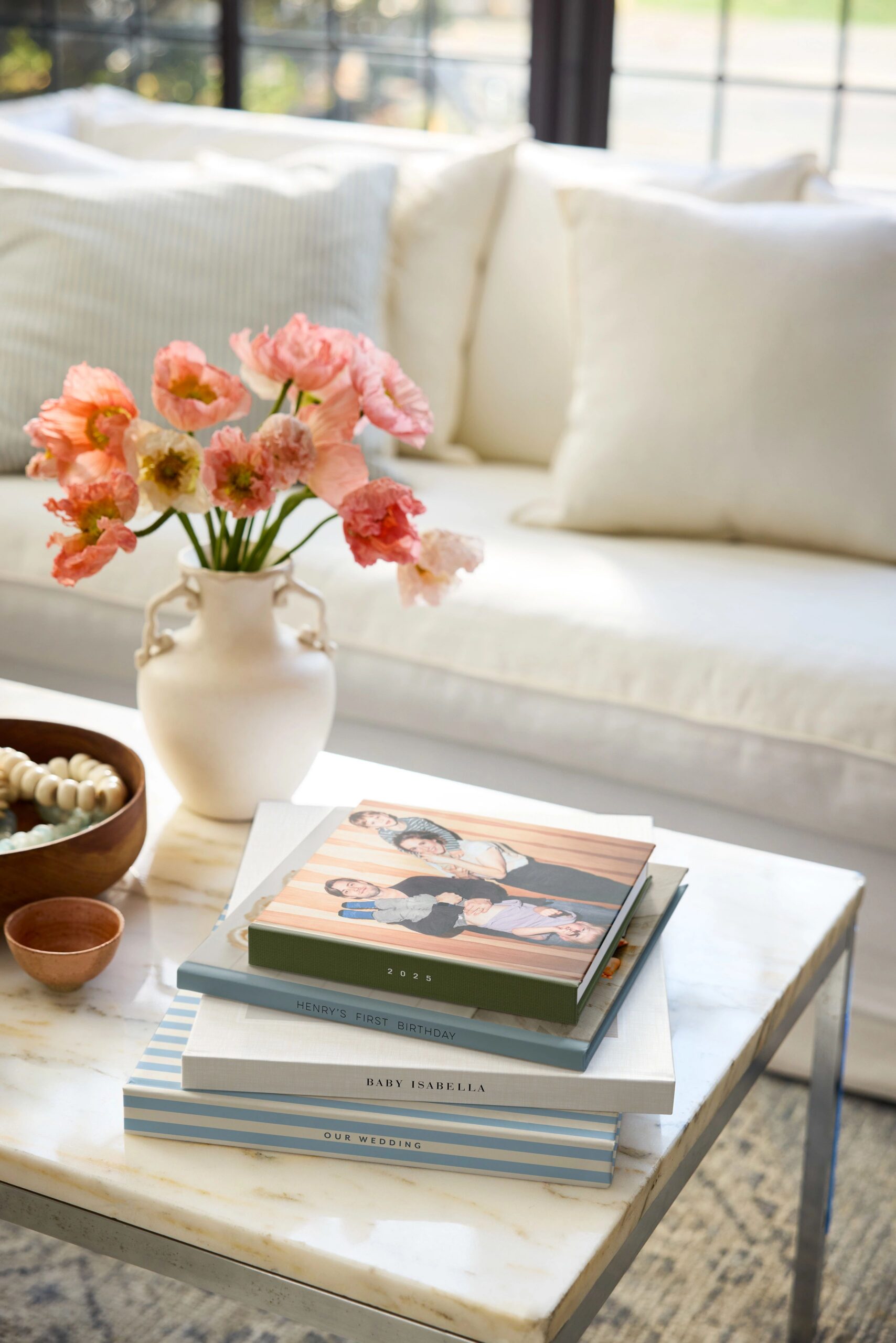
- Baby Photo Books
- Wedding Photo Books
- Everyday Photo Books
- Year in Review Photo Books
If you prefer more flexibility, you can also start from a blank page and build your photo book design from scratch.
Choosing a template doesn’t lock you in—you can adjust layouts, swap photos, and customize the design later.
Step 3: Choose Your Photo Book Size, Cover Style & Binding
Next, choose the physical format of your photo book. These decisions affect how your book looks, feels, and displays your photos.
Select Your Photo Book Size
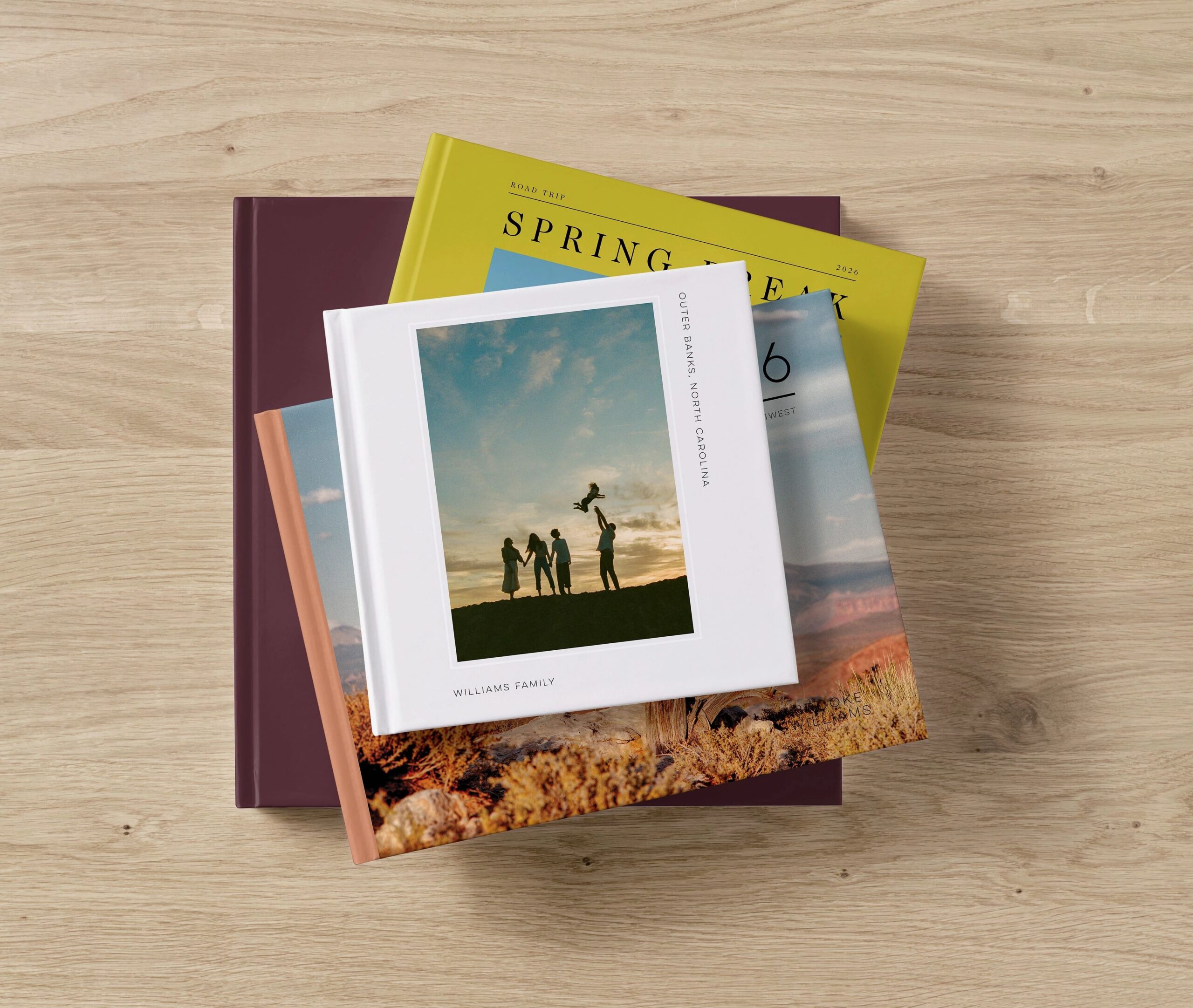
Photo books come in square, landscape, and portrait formats. The best choice depends on how your photos were taken and how you plan to use your book.
Choose a Cover Type
- Hardcover photo books for a classic, durable option
- Softcover photo books for a lighter, more flexible feel
- Leather photo books for a premium and more elevated look
Pick Your Binding Style
- Standard binding for everyday books
- Layflat binding for seamless spreads across two pages
- Deluxe layflat for a thicker, more premium finish
If you’re deciding between formats, it can help to compare options like hardcover vs. softcover or standard vs. layflat before you start designing.
Step 4: Choose How You Want to Create Your Photo Book
After selecting your photo book, you’ll choose how you want to build it inside the editor.
Make It Fast
Shutterfly creates a starting version of your photo book using your selected photos. You can go in and adjust layouts, swap images, and edit text afterward.
Make It Manually
Build your book yourself with full control. You can place photos, adjust layouts, add text, and customize each page, including starting from a blank page if you prefer.
Make It For Me
With Shutterfly’s free photo book designer service, a designer creates your photo book for you based on your photos and preferences. You’ll receive a completed version to review and edit before ordering.
Step 5: Customize Your Photo Book From Cover to Cover
This is where your photo book starts to come together.
Design the Cover
Customize your front and back cover by:
- Swapping photos
- Editing titles, names, or dates
- Adjusting layouts and backgrounds
Edit and Arrange Pages
Work through your photo book page by page:
- Add or remove photos
- Change layouts
- Rearrange images
- Add or delete pages
Add Text and Captions
Text helps tell the story behind your photos. You can add:
- Page titles
- Captions
- Dates or locations
If you want more guidance, explore ideas for adding text and captions to your photo book.
Customize Backgrounds and Embellishments
You can also:
- Change background colors or patterns
- Add embellishments like borders or design elements
- Adjust spacing and alignment
Small design details can make your book feel more cohesive and polished

Step 6: Review, Preview, and Make Final Adjustments
Before ordering, preview your photo book from beginning to end. This helps you catch:
- Typos or missing text
- Cropped faces or important details
- Page order or layout issues
You can go back and make edits at any point before finalizing.
Step 7: Place Your Order
Once everything looks right, confirm your selections and place your order.
At this point, your photo book is ready to be printed and turned into a finished keepsake.
More Photo Book Ideas and Resources
If you want to explore more options, design ideas, or planning tips, these resources can help:
Choosing the Right Photo Book
Design Ideas by Occasion
- New Photo Book Designs
- Best Travel Photo Book Designs
- Best Wedding Photo Book Designs
- Best Photo Book Designs for Graduation
- Best Photo Book Designs for Mother’s Day
- Coffee Table Photo Book Ideas
Planning and Budget Tips
